
We recommend you use a computer or an iPad/tablet (not your phone).
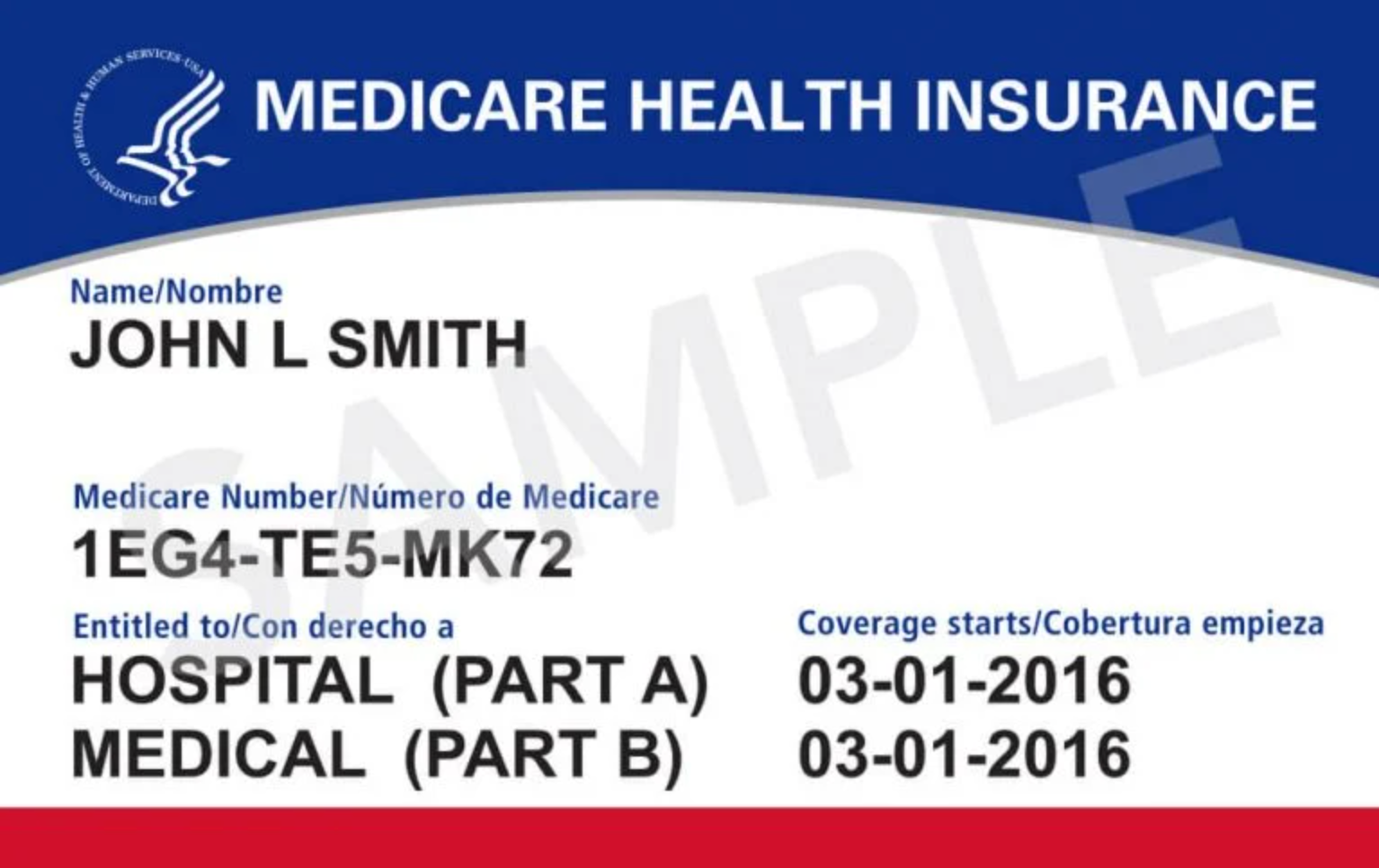
Have your red, white and blue Medicare card nearby.
You will also want access to:
Important: Your Medicare Number is different from your Social Security number. Your Medicare Number is printed on your Medicare card.
Simply follow the steps below or download the quick guide.
If you have a Medicare.gov account and are ready to review your Prescription Drug Coverage, click the button below:
Source: Medicare.gov

Open your internet browser and go to:
https://www.medicare.gov/account/create-account
Safety tip: Make sure you are on the official Medicare.gov website before entering your Medicare information.
Medicare.gov will ask for information from your Medicare card.
Have your red, white and blue Medicare card in front of you.
You will be asked for:
Medicare Number
Enter the Medicare Number exactly as it appears on your card.
Your Medicare Number contains 11 numbers and letters.
Part A Coverage Start Date
Enter the date your Medicare Part A coverage began, as shown on your Medicare information.
Medicare.gov currently asks for the date in month/day/year format.
Then select Next.
Follow the instructions to provide the email address you want to use with your Medicare.gov account.
Use an email address that you can access.
You may receive an email from Medicare.gov as part of the account setup or security process.
Tip: If you don’t see the email, check your spam or junk-mail folder.
Follow the instructions to create the login information for your Medicare.gov account.
Choose a password that is difficult for other people to guess but that you can remember.
Keep your login information private.
Do not share your Medicare.gov password with friends, family members, callers or anyone who contacts you unexpectedly.
If you write your password down, keep it somewhere secure.
Medicare.gov may ask you to complete additional steps to verify your identity and protect your account.
Follow the instructions shown on the screen.
You may be asked to verify information through your email, phone or another security method.
Medicare.gov may also offer secure sign-in options such as ID.me, CLEAR or Login.gov.
If you are asked to complete additional verification, simply follow the instructions provided by Medicare.gov.
Continue following the instructions until Medicare.gov confirms that your account has been created.
Before leaving the page, make sure you know:
Then sign in to make sure your new account works.
Check the information you entered
Make sure your Medicare Number and other information match your Medicare card and Medicare records.
Check your email
If Medicare.gov sends you an email and you don’t see it, check your spam or junk-mail folder.
Try again later
If the website is temporarily having trouble, wait a little while and try again.
Contact Medicare
If you continue to have trouble creating your account, Medicare can help.
1-800-MEDICARE (1-800-633-4227)
TTY: 1-877-486-2048
Your Medicare.gov account contains personal information, so treat your login information like you would information for your bank account.
Remember:
Don’t share your password.
Don’t give your Medicare Number to someone who unexpectedly calls, texts or emails you.
Be cautious about links in emails or text messages.
When accessing your account, it is safest to type Medicare.gov into your browser yourself or use a bookmark you created for the official website.
If you’re using a public or shared computer, don’t save your username or password. Log out when you’re finished.
Once your Medicare.gov account is set up, you’re ready to begin comparing prescription drug plans.
Our step-by-step guide will show you how to enter your medications, add your preferred pharmacy and compare your prescription drug plan options.